How Hackers Crack Passwords — And How to Stop Them
Understanding the mechanics of modern password cracking is the first step to securing your sensitive files. Learn how attackers compromise weak defenses, and discover the encryption standards required to stop them.
Password cracking relies on automated techniques like brute force and dictionary attacks, often accelerated by GPUs. The most effective defense for desktop files (like Word documents) is applying AES-256 encryption paired with a passphrase longer than 14 characters. We strongly recommend purpose-built encryption software over basic file permissions to prevent offline extraction.
Is Password Cracking Illegal?
Yes. Attempting to bypass, crack, or subvert the security controls of a file, network, or device you do not explicitly own or have documented authorization to test is a cybercrime in almost all jurisdictions (e.g., the Computer Fraud and Abuse Act in the US).
WiFi Password Cracking Legal Consequences: Searching for "wifi password cracking" to access a neighbor's or business's network without permission can result in severe penalties, including hefty fines and federal or state imprisonment. Ethical hackers (penetration testers) only utilize these tools under strict, contractually bound scopes of work.

Password Cracking Techniques Explained
To defend a document, you must understand how security software like a "zip password cracker" or "brute force password excel" script actually functions. Modern cracking does not involve guessing passwords manually; it relies on mathematics and raw computational horsepower.

Brute Force Attacks
A brute force attack systematically checks all possible combinations of characters until the correct one is found. For a 4-digit PIN, there are only 10,000 combinations—a modern computer checks this in milliseconds. However, complexity grows exponentially. A 12-character alphanumeric password takes centuries to brute force.
Dictionary Attacks
Instead of random characters, this technique uses massive lists of known words, leaked passwords, and common phrases (e.g., "password123"). Attackers apply mutation rules (substituting 'a' with '@') to cover variations. This is highly effective against user-created passwords.
Rainbow Tables
When files are secured, the system often stores a "hash" of the password. Rainbow tables are massive, pre-computed databases of hashes for millions of possible passwords. By looking up the stolen hash in the table, the software instantly retrieves the plaintext password, bypassing the need to compute it live.
The Threat of Hardware Acceleration (GPU Cracking)
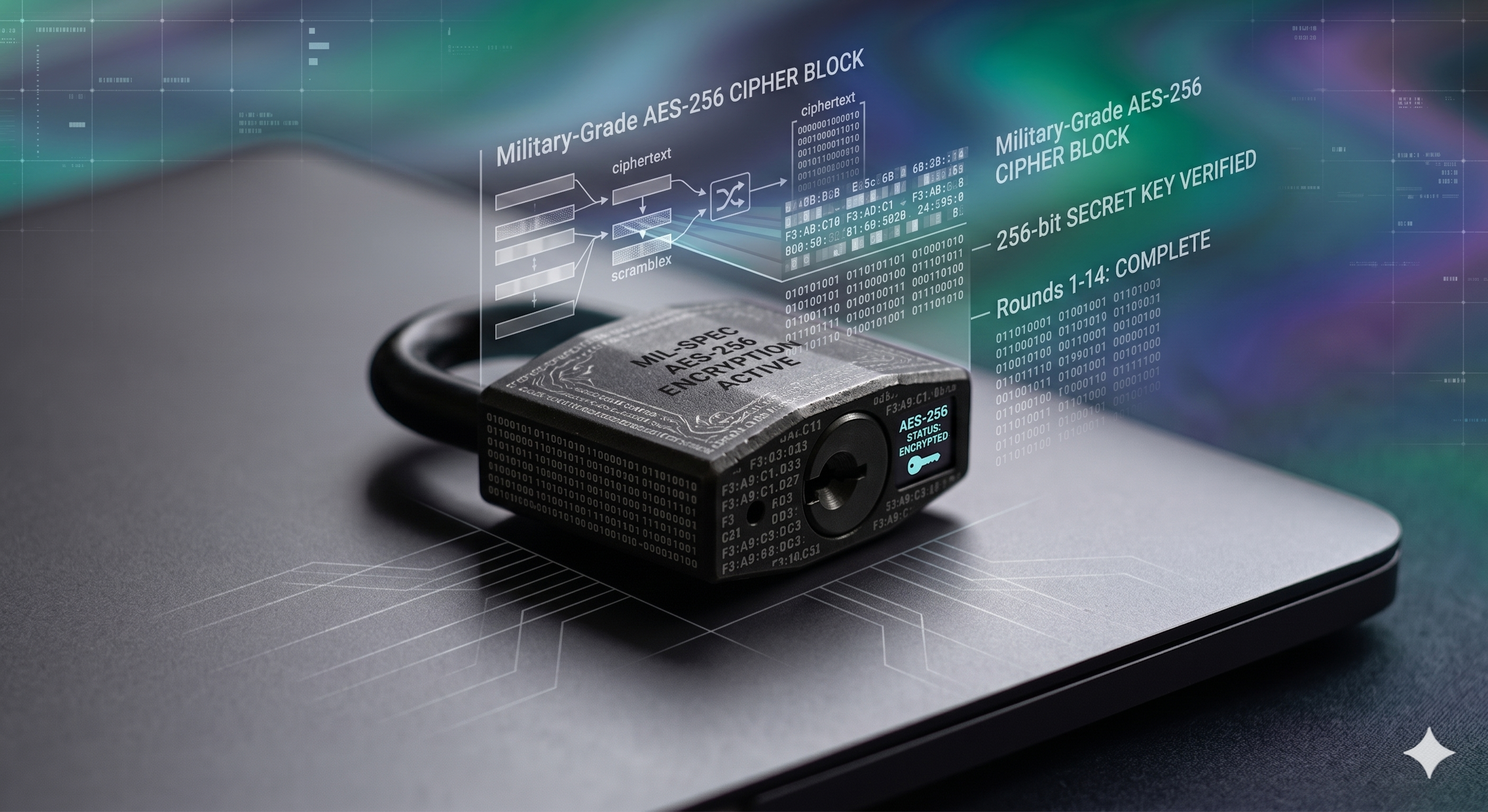
Queries like "7-zip aes-256 password cracking speed gpu" reveal a critical truth: attackers use graphics cards (GPUs) rather than standard processors (CPUs) to run cracking algorithms. A standard CPU might guess 10,000 passwords a second; a high-end GPU rig can process billions of hashes per second. This is why length and complexity are your only defenses against offline extraction.
Password Vulnerability Evaluator
Enter a mock document password to see how quickly a modern GPU rig (estimating 10 billion guesses/sec) could crack it via pure brute force. (Calculated entirely in your browser; no data is sent anywhere.)
Why Document Password Protection Is Not the Same as Encryption
When evaluating "document password protection," many users mistakenly believe that any password prompt equals total security. This is fundamentally false and leaves files vulnerable to basic bypass scripts.
Permissions Password vs Open Password
Applications like Microsoft Word or Adobe Acrobat offer two distinct layers of protection:
- Permissions Password (Restriction): This simply tells the software, "Please don't let the user edit or print this file." The actual content of the file is entirely unencrypted. Any basic "crack password protected pdf" tool simply strips the metadata flag telling the software to restrict editing. It takes seconds and requires no brute forcing.
- Open Password (Encryption): This requires a password to open the file at all. In modern versions of Office, setting an open password actually encrypts the file's binary contents using AES. Without the key, the file is mathematical garbage.
Defending Files with Folder Lock
Relying on built-in Office passwords or ZIP archives leaves room for error, metadata leaks, and brute force vulnerability. To definitively stop offline cracking attempts on your desktop, we recommend Folder Lock.
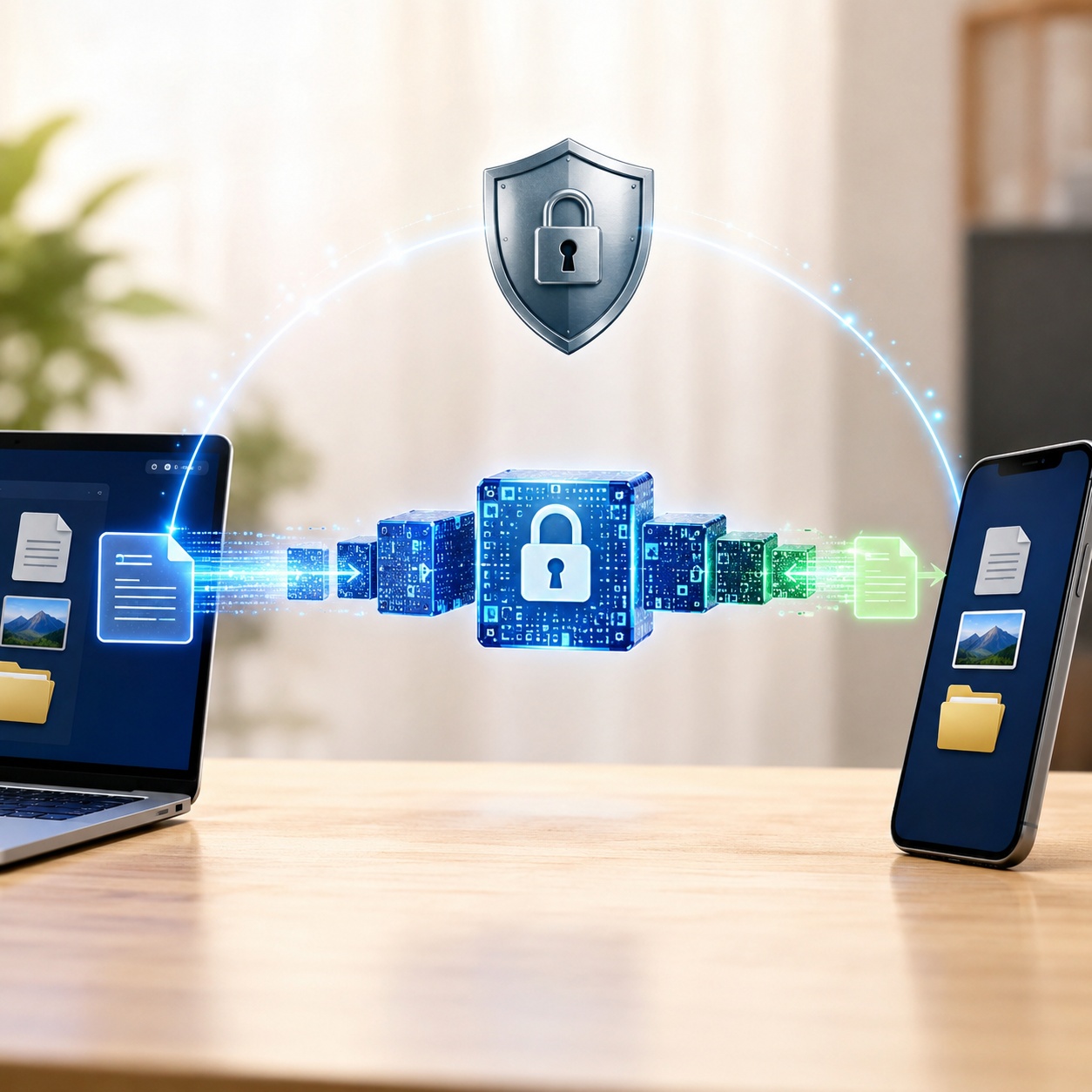
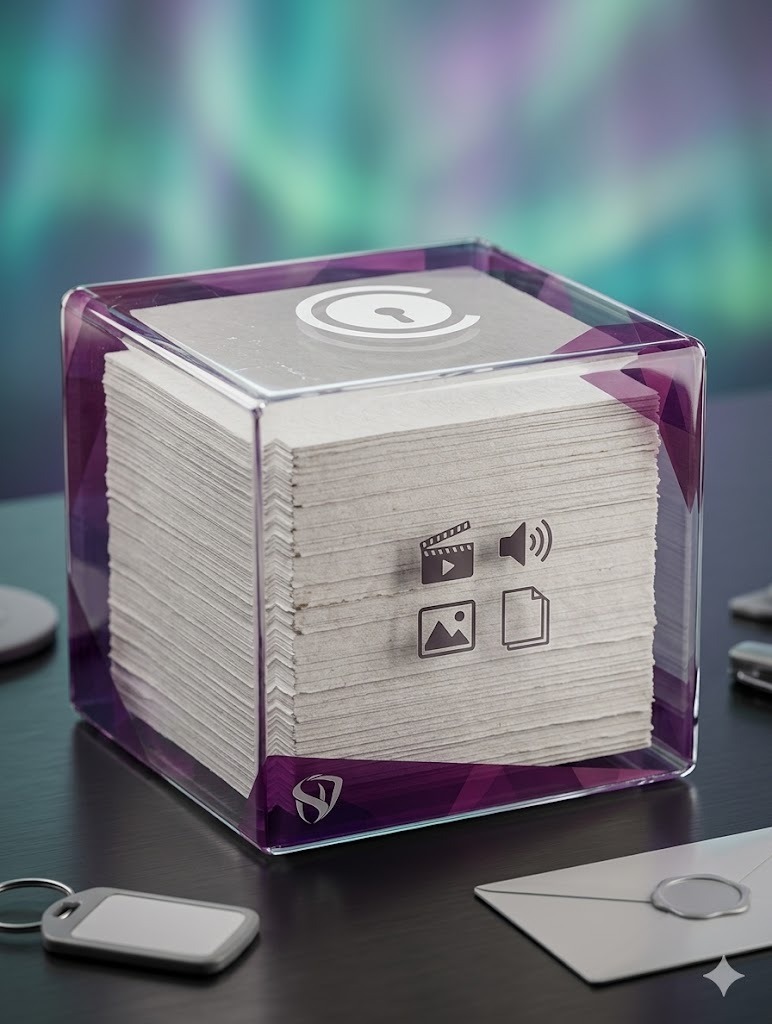
Folder Lock secures your documents inside dynamically encrypted "Lockers." Because it utilizes government-level 256-bit AES encryption on the container itself, attackers cannot extract the raw file data to run brute force or dictionary attacks against it. It is functionally immune to standard "zip password cracker" utilities.
- ✓ AES-256 Bit Encryption: Mathematical certainty against brute force.
- ✓ Kernel-Level Safe Mode Protection: Stays locked even if an attacker reboots your machine in Safe Mode.
- ✓ Auto-Protection on Idle: Automatically secures your open documents the moment you step away.
- ✓ Portable Security: Convert your secure environment into a portable file for USB drives or email.

Folder Lock Dashboard
[ AES-256 Locker Active ]
Status: Encrypted & Hidden
Security Features Breakdown
How a dedicated tool handles document security compared to native features.
Batch Protection
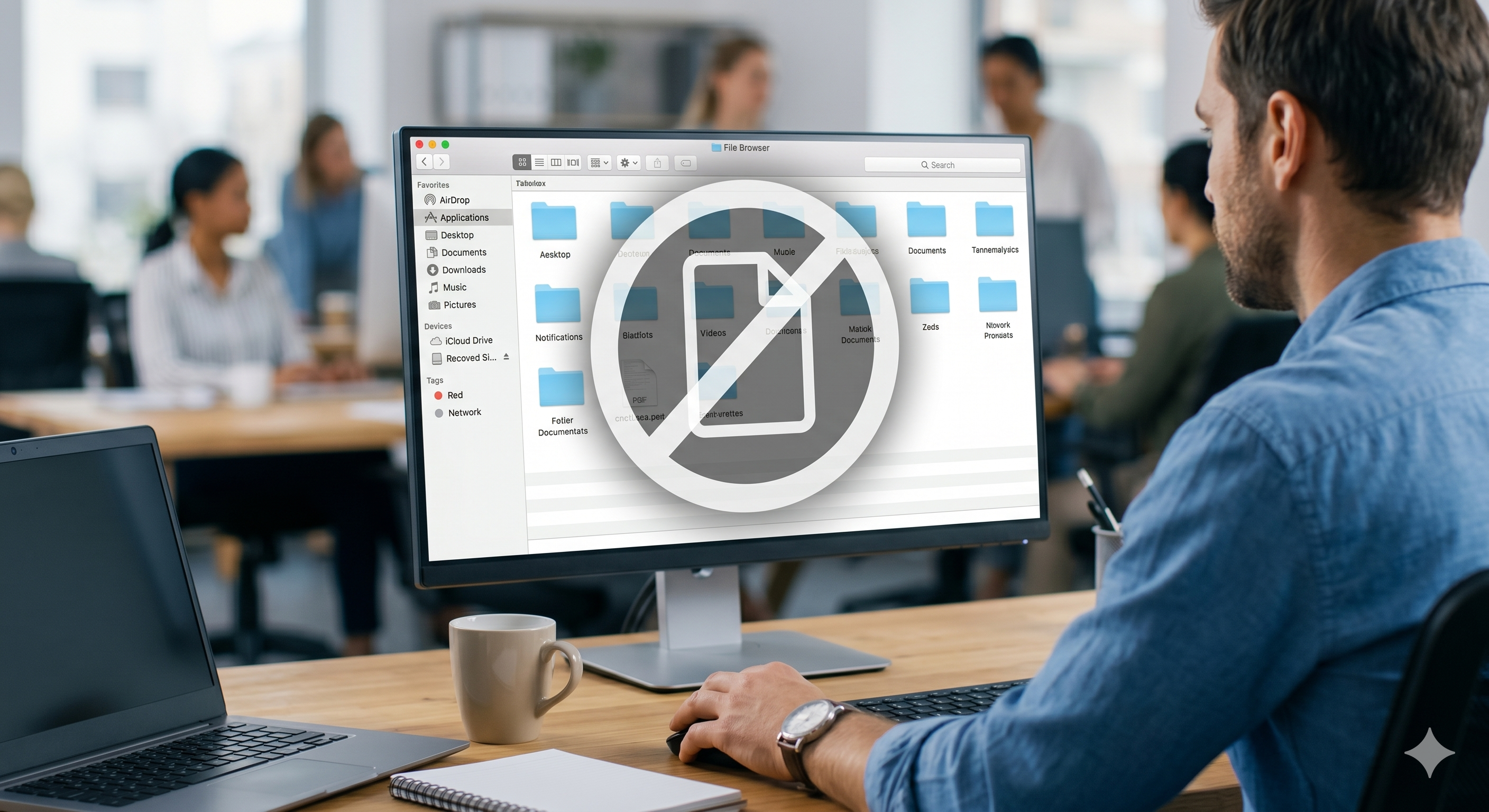
Instead of manually entering a password for 50 different Word documents, Folder Lock allows you to secure an entire folder simultaneously, applying uniform AES encryption across all contents.

Data-in-Use Control
Sometimes you need to let someone view a file but prevent them from altering it. Advanced access controls allow you to mathematically restrict modifications or prevent accidental deletion while the document remains accessible.
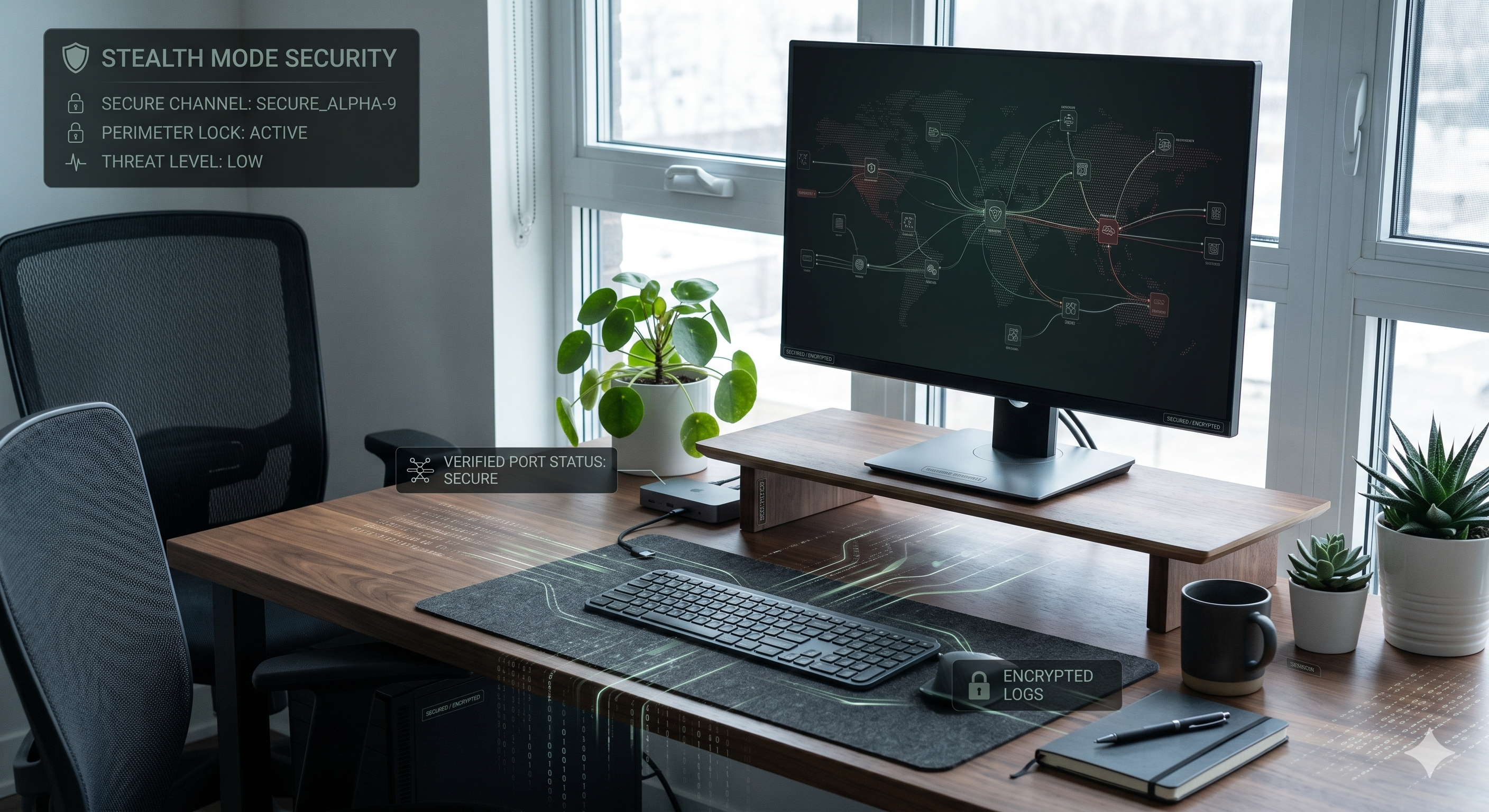
Stealth Mode Configuration
A file cannot be cracked if the attacker doesn't know it exists. Folder Lock can erase all traces of its own installation from your desktop, start menu, and taskbar, operating entirely invisibly until summoned via a secret keyboard combination.
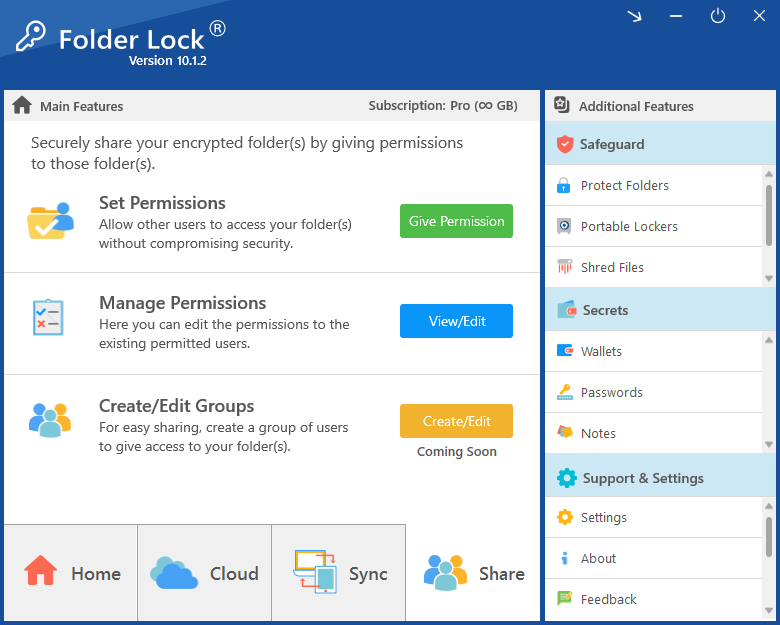
Zero-Knowledge Remote Sharing
Emailing a password alongside a protected document defeats the purpose of encryption. Using asymmetric cryptography (RSA), you can securely grant access to specific authorized users remotely, completely eliminating the need to transmit your master password.
Cloud & USB Integration
Unlike native Office passwords that can complicate syncing, encrypted lockers can be safely synchronized to cloud providers or converted into self-contained portable files (.flk) to be carried securely on a USB thumb drive.

Troubleshooting & Owner-Safe Recovery
A common scenario leading users to search for "crack password protected word document" is simply forgetting their own password. Because strong encryption works exactly as intended, recovery is deliberately difficult. Here are the official, safe methods for regaining access to your files.
| Protection Method | Can be bypassed? | Vulnerable to Brute Force? | Safe Mode Bypass? | Owner Recovery Options |
|---|---|---|---|---|
| Word "Restrict Editing" | Yes (Metadata edit) | N/A | Yes | Save as new file / Remove tags |
| Word "Open Password" (Modern) | No | Yes (If weak) | Yes | None (File is lost without key) |
| Legacy ZIP Encryption (ZipCrypto) | Yes (Known plaintext) | Yes | Yes | Third-party recovery tools |
| Folder Lock (AES-256 Locker) | No | No (Mathematically secure) | No (Kernel-level driver) | Master Key / Serial verification |
How to recover Folder Lock password?
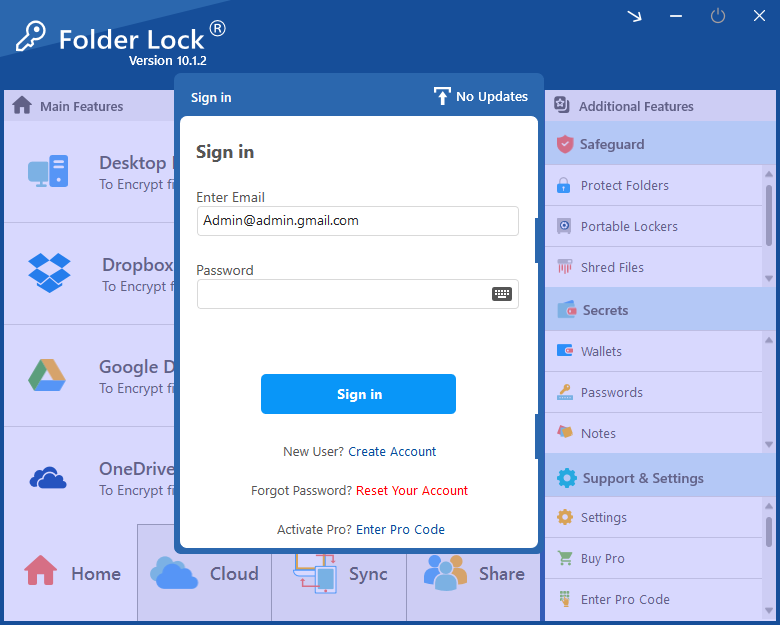
If you have lost access to your Folder Lock dashboard, you cannot simply "crack" the software. You must use the authorized recovery mechanism:
- Open Folder Lock and navigate to the login screen.
- Click on the Forgot Password? link.
- You will be prompted to enter the Master Key or the Serial Number associated with your registered license email.
- Once verified, the software will allow you to reset your master password.
Note: If you are using the free version or have lost your serial number, the encrypted lockers remain permanently sealed. This is by design to ensure zero-knowledge security.
How to uninstall Folder Lock without password?
To prevent malicious actors from simply uninstalling the software to expose hidden files, Folder Lock requires the master password for uninstallation. If you must force an uninstall due to system corruption, you will need to boot into Safe Mode and manually remove registry keys—however, this will NOT decrypt your Lockers. The encrypted data will remain inaccessible.
Frequently Asked Questions
Stop Relying on Basic File Passwords
Understanding how hackers crack passwords reveals the inadequacy of built-in document restrictions. While a 7-zip archive or a Word document password can deter casual snooping, they are vulnerable to automated offline attacks. For absolute certainty, shift from basic passwords to dedicated AES-256 locker encryption.